Tuesday, 13 December 2011

Introducing Magazines on Google Play for the UK

Following hot on the heels of the recent launch of music on Google Play in the UK, we’re pleased to announce that from today, you’ll also be able to buy digital versions of your favourite magazines for reading on the go.

Popular titles from some of the world’s leading publishers such as Condé Nast UK, Dennis Publishing, Future, Haymarket, Hearst UK, Immediate Media and IPC Media are now available for purchase on your Android phone or tablet.

Get in shape with Men’s Fitness, cook up a storm with olive, work off all that turkey and Christmas pudding with Slimming World, catch up on the latest must-have gadgets with T3 and read a preview of The Hobbit in this month’s edition of Total Film.

You can stay abreast of the week’s key events with Hello!, New Statesman and The Spectator and keep on top of the latest lifestyle news with Cosmopolitan, Glamour and Tatler. Petrolheads can pick out some new wheels with What Car?, while domestic goddesses can take their inspiration from Good Housekeeping.

Browse the Play Store to find your favourite magazines, discover new titles with a 30-day free trial, buy single issues or purchase a money-saving monthly or annual subscription to leading titles such as Elle, Harper’s Bazaar, Vogue and Wired. New Nexus devices even come pre-loaded with free issues of Men’s Fitness, .net and Vogue to get you started.

All your latest issues will be instantly available on your Android tablet or phone, or online, using our web reader, and organised in your collection in the cloud. You can flip through your magazine carousel to quickly decide what to read next or simply search for a specific title in your magazine collection.


Magazines are available today to enjoy on the sofa or on the go via your Android devices and on play.google.com, so please take a look.

Posted by Avi Yaar, Product Manager, Google Play

Monday, 12 December 2011

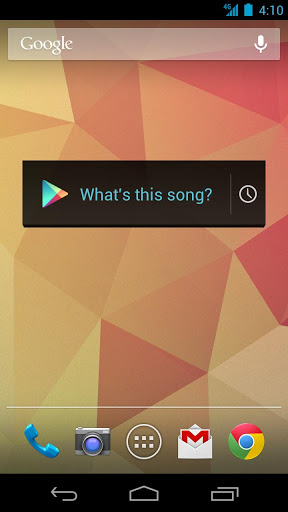
Sound Search for Google Play widget, now available on Google Play

“What's this song?” Starting today, the Sound Search for Google Play widget is available to download from the Play store, so you can start identifying music playing around you, directly from your Android device’s homescreen.


Sometimes, you hear a song you like while you’re out and about but don’t want to download it right at that moment. The Sound Search widget syncs across all of your devices, so that song you recognized with your phone in the coffee shop can be quickly purchased from your tablet at home.

For devices running Android 4.2, you can add the widget directly to your device’s lockscreen, letting you recognize songs without even unlocking your phone, making it even easier for you to catch that song at the club.

The Sound Search for Google Play widget is available on Google Play for devices in the U.S. running Android 4.0 and above. After you’ve installed it, go to the widget picker and drag the Sound Search widget onto your homescreen. You can click on the widget at any time to start recognizing music around you.

Posted by Annie Chen, Software Engineer

New in Google Currents: Scan through your favorite categories, editions and breaking news

Keeping up on the news out there can be overwhelming. That's where Google Currents comes in—an app that allows you to discover, share and read your favorite news outlets, blogs and online magazines (what we together refer to as “editions”) on your smartphone or tablet—even when you’re offline. Currents is filled with great editions like The Los Angeles Times, CBS Sports, Android Central, The Guardian, Shortlist, and Forbes. Today, we’re revamping Currents to make it even easier to scan through all your favorite categories and specific editions with just the swipe of a finger. And, we’re using some of the technology behind Search to bring you breaking stories on those celebrity scandals, that fiscal cliff negotiation or hottest holiday gift.

Scan through categories 
We’re now grouping editions into categories to help you keep track of your existing subscriptions and discover new ones. Check out editions related to your interests through categories like Entertainment, Sports, Lifestyle and more. All of your content will be grouped in these categories, accessible from a sidebar. And you can organize your editions in each category with favorites on top.

We’ve also made it easy to quickly browse through top articles from all your favorite editions in a category—just swipe horizontally. If you subscribe to more than a dozen News editions like The Atlantic, ABC News and The Telegraph, you can quickly swipe through the entire category and dive into editions with articles of interest.


Scan through editions 
We’ve also made it easier to scan headlines in a particular edition—just swipe vertically. Want to see what’s new in Popular Science? Just swipe through through the headlines. After you view a story we’ll mark it as read, so it’s easier to see new content each time you use Currents.


Scan through breaking stories 
To help you stay up-to-date with the latest news, Google Currents now uses some of the technology behind Search to deliver the hottest breaking stories in categories such as World, Entertainment, Sports, Science and more. You’ll find new articles from hot topics that interest you, while discovering existing Currents editions you can subscribe to. Breaking stories are customized to your country and language—so we’ll only show you relevant news.


Currents optimizes editions to look great on whatever type of device you're using. Now articles shine, with larger images and layouts that are intelligently optimized for your device, whether you're on a phone or a tablet. Check out some of our newest featured partners like Cars.com, Voice of America News and New Scientist.

Back in April we expanded Google Currents internationally. Since then millions of readers around the world have downloaded Currents, reading over 700 publisher editions and tens of thousands of self-produced editions. The updated app is now available for download on Google Play and coming soon to iOS. We hope that today’s updates make keeping up with the latest news fast, easy and fun no matter where you are or what device you’re using.

Posted by Mussie Shore, Group Product Manager

Sunday, 11 December 2011

Root Samsung Galaxy Nexus via ADB [How to][Tutorial]


Want to gain root access on your Galaxy Nexus. Here is a quick guide to help your root your Ice Cream Sandwich smartphone using ADB aka Android Debug Bridge. As ADB is available for all major platforms like Windows, Mac and Linux, Rooting Galaxy Nexus is possible on any PC running any of these three platforms.

If you don’t already have ADB on your mac or Windows PC, then check out the tutorial for Windows Hereand for Mac here.

After you have setup ADB, you will need to download two files to complete the process.


STEP 1: Extract both the RAR files that you have just downloaded.
STEP 2: Copy the required Fastboot file depending on your platform to ADB folders. For Ex: If you are using Windows, copy fastboot-windows.exe to ADB folder. Same in the case of mac and linux.
STEP 3: Turn on USB Debugging on your Galaxy Nexus.
STEP 4: Install Driver from the Galaxy Nexus Manual Root folder. File name is Samsung_USB_Driver_for_Moblie_Phones_v1_4_6_0.exe
STEP 4: Connect Galaxy Nexus to your computer via the microUSB cable and check if ADB is working properly by running adb devices in the terminal or command line. If it shows Galaxy Nexus, then you are good to go to next steps, else properly install ADB.
STEP 4: Turn off your Galaxy Nexus
STEP 5: Turn on your Galaxy Nexus in Bootloader mode [How to do that – Press 'volume up' and 'volume down' and ‘power button’ at the same time] [See the image below]

STEP 6: Run the following commands in Windows.

fastboot-windows oem unlock

For MAC and Linux use the following commands

fastboot-linux oem unlock
fastboot-mac oem unlock

STEP 7: Press Yes on your phone once it asks your confirmation to unlock the bootloader.

STEP 8: Run the following command

fastboot boot boot.img

STEP 9: Your Galaxy Nexus will now reboot. Make sure to enable Debugging.
STEP 10: Run the following command, one by one and make sure to keep the right path to the files being pushed. 

adb root
adb remount
adb push su /system/bin
adb push Superuser.apk /system/app
adb shell chmod 06755 /system/bin/su
adb shell chmod 06755 /system/app/Superuser.apk
adb reboot

STEP 11: Your Galaxy Nexus is rooted, enjoy
In case of any issues, consult the original forum thread over here.

Saturday, 10 December 2011

Unlock Galaxy Nexus Bootloader [How to][Guide]


Want to unlock the bootloader of your Galaxy Nexus; here is a quick tutorial that should help you. Being a Nexus smartphone, unlocking the bootloader of Android 4.0 powered Samsung Galaxy Nexus is fairly easy, but you need to be sure by unlocking bootloader wipes your phone, so your phone will be back to factory state after the following steps are completed. So make sure to make a backup the necessary data/SMS/Call log etc.

STEP 1: First download this file (r3-galaxynexus-superboot.zip)
STEP 2: Download PdaNet and install, it installs the required drivers to work with the following steps.

STEP 3: Extract the download zip to a folder using Winzip, WinRAR, 7Zip or any compressing application of your choice.
STEP 4: Turn off your Galaxy Nexus
STEP 5: Turn on your Galaxy Nexus in Bootloader mode [How to do that – Press 'volume up' and 'volume down' and ‘power button’ at the same time] [See the image below].

STEP 6: Go to the extracted folder and press SHIFT and right click, then click on “open a command window here”.

STEP 7: Type fastboot-windows oem unlock in the command window and hit enter.

STEP 8: Your Galaxy Nexus will ask you that whether you are sure that you want to unlock bootloader, press YES.

You are done, enjoy. Now if you also want to root you Galaxy Nexus, then follow the guide at this link from STEP 6.

Root Kindle Fire [How To Guide]

Are you an owner of Amazon Kindle Fire and want to get root access on the tablet, then this guide should help you. Rooting Kindle Fire is a fairly easy process for most of the part, you will however need a few files to make it possible.

Requirements:


Steps to root Amazon Kindle Fire

  1. Unzip Kindle driver file.
  2. Rename the unzipped folder to .android (Keep that dot in the folder name)
  3. Copy .android folder to C:\Users\”yourusername”\ (Yourusername is the user name on your PC)
  4. Connect Kindle Fire to your computer with a microUSB cable. You will get the “can't find the driver” error from Windows, which will give you the option to search from Windows Update. Cancel it and click 
  5. Disconnect on Kindle Fire (don’t remove the cable).
  6. Then open Control Panel and go to Device Manager, here you will find "Other Devices" section, Double Click Kindle and then click on Update Driver.
  7. You will be prompted, Choose “Browse my computer for driver software” and then browse to the .android folder and select next, you might get a warning about the file being unverified, allow it and finish.
Hard part is over now.
  1. Now open the unzipped SuperOneClick folder
  2. As your Kindle Fire will still be connected via usb cable, click on the SuperOneClick app file.
  3. Click on Root in SuperOneClick and just follow the easy instructions. After finishing SuperOneClick will ask if you want to verify whether tablet has been rooted or not, select yes and you will see a superuser permission box on your tablet, which means it is rooted.
  4. You are done for now.

Root Samsung Galaxy Ace [How To]

Want to root Samsung Galaxy smartphone; here is a quick guide for you. You need a few files that have been mentioned below to complete this process.
 - Samsung Kies (Official Samsung site: http://www.samsungapps.com/about/onPc.as)
 - SuperOneClick 2.1.1 (here: http://forum.xda-developers.com/showthread.php?t=803682)


  • Install Samsung Kies, it will install the proper drivers needed for your phone 
  • Turn on your phone 
  • Enable USB Debugging at Setting>Applications>Development 
  • Now, check the Android version on your phone. You can do this by going to Settings>About


IF you have Android 2.2.1

  1. Connect your phone into PC via cable
  2. Launch Super One Click 2.1.1
  3. Click "Root"
  4. Wait until the program will root your phone
  5. Reboot 

OR

If you have Android 2.3.3/2.3.4/2.3.5

  1. Download upd_1.zip
  2. Copy upd_1.zip to your sdcard
  3. Turn off your phone
  4. Press POWER+HOME BUTTON
  5. Apple Update from sdcard, select the file upd_1.zip
  6. After the update completed - reboot
  7. Voila you are done.


Google Currents on Kindle Fire [How to] [APK Download]

As you would have already heard that Google has released its Flipboard competitor "Google Currents" in the United States recently. Similar to other Google applications, it is not available in the Amazon App Store, so you will need a workaround to install this application your Amazon Kindle Fire.

First you need root access on your Kindle Fire - You can find more on how to root the tablet here.
Now, you need to grab root explorer or any other file explorer from Amazon App Store that can give you access to system folder and make it writable.
Then you will need to download Kindle Fire APK from here.
Now, follow this guide to install Google Currents on your Kindle Fire.

Bonus: You can follow this tutorial to install Android Market on your Kindle Fire.